2.1.1 Project Info & Presentation
Project Info & Presentation is the landing experience for a project. Use it to write an overview in Markdown, configure project metadata, and build slide-based presentations that combine map views with narrative content.
This tab is where viewers first understand what the project is about. You can publish introductory text, set defaults such as basemap and start theme, and guide users through a presentation.
A. Project Info
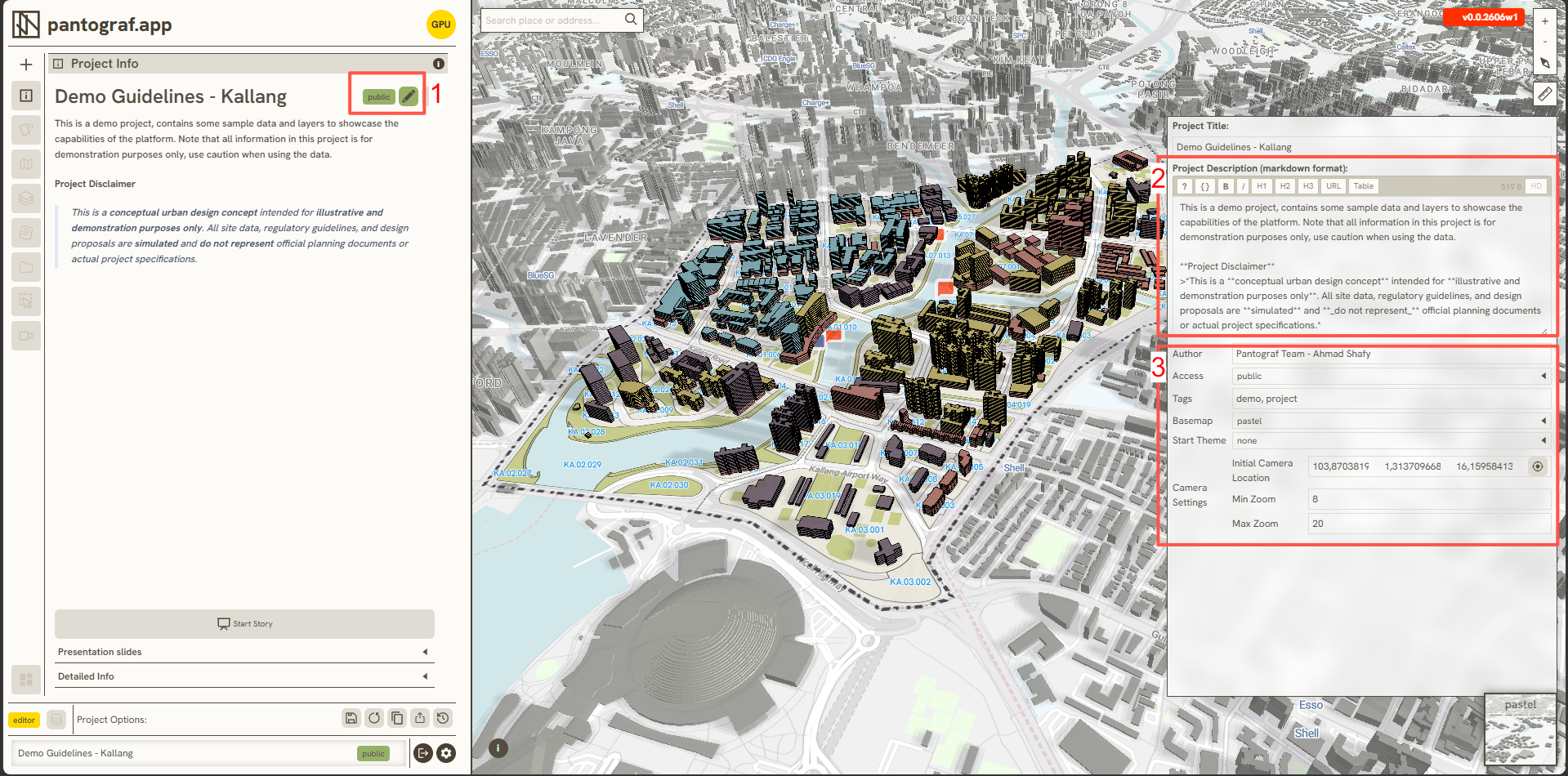
Follow these steps to write a new Project Info section:
-
Click the edit button on the 1.1.5 Left Bar.
-
Use the Markdown Editor to write a description, narrative, or general overview of your project. You can utilize various formatting features such as text styles, URLs, and tables where needed.
-
Within this section, you can configure the following metadata fields:
-
Author: Provides attribution for the text.
-
Access: Sets the project's restriction and accessibility type (e.g., Public).
-
Tags: Generates tags to easily organize and manage the project.
-
Basemap: Pre-loads a specific basemap when the project opens.
-
Start Theme: Pre-loads a selected theme upon opening the project.
-
Camera Setting: Configures the project's initial zoom factor and viewport when loaded.
-
B. Presentation
To start a presentation you have already created, click the

presentation button and use the up and down arrow keys (or your mouse) to move between slides. You can also jump directly to a specific slide.
To create a new presentation slide:
-
Click 'Presentation Slide' directly beneath the 'Start Story' button.
-
At the bottom, select either a Markdown slide or a Map/Tab slide:
-
Markdown slide: Use this to draft descriptions or embed dataset elements via the 2.3.2 Markdown Editor and 2.3.2a Markdown Table.
-
Map/Tab slide: Use this to capture transitions between specific themes, series, shadow settings, or documents.
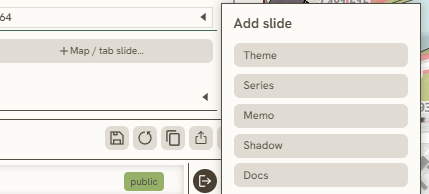
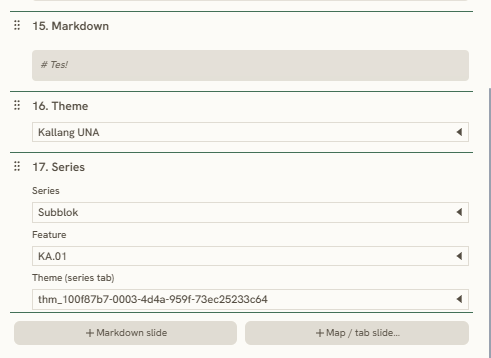
If you select a **Theme**, choose which theme appears in your presentation. If you choose a **Series**, select the series, feature, and theme configured within that series.

The [1.1.7 Island Bar (Right Bar)](/docs/1-general-ui/1.1.7-island-bar-right-bar) will then display the data from your selected theme or series.
Keywords
project, info, presentation, author, access, tags, basemap, start, theme, camera, setting, button, slide, story, markdown, map