2.2.1 Projects
Projects is the workspace dashboard for creating projects, attaching datasources, reviewing metrics, and building offline packages. Open it from 2.2 Editor Tools when you need to set up or maintain a project outside the map view.
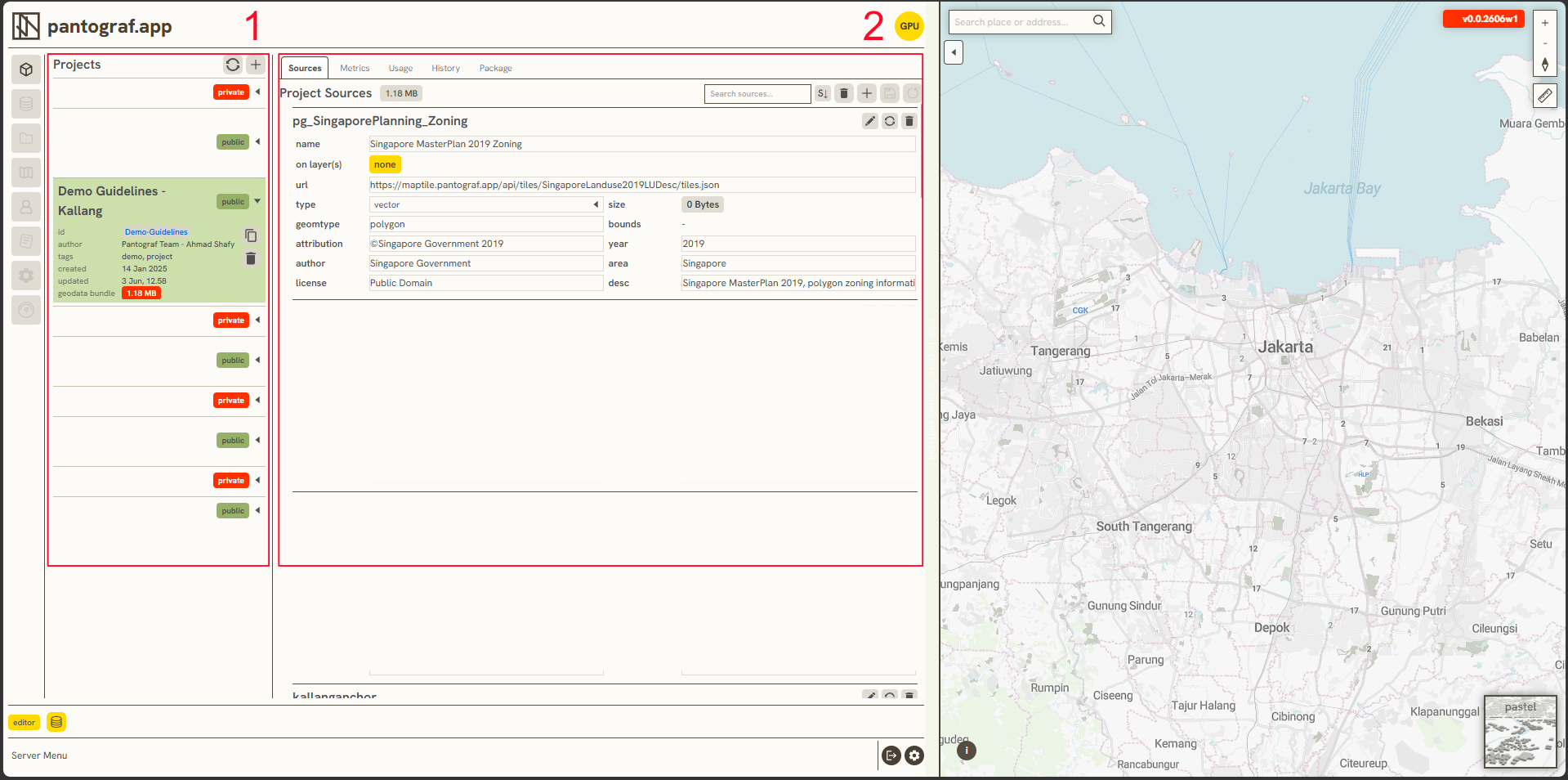
The dashboard has two main areas: Section 1 for creating and listing projects (public or private), and Section 2 for attaching, organizing, and packaging the datasources used in project workflows.
A. Create a New Project
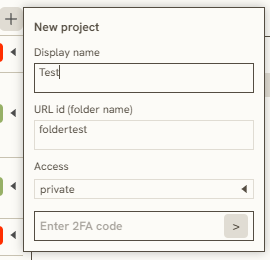
Follow these steps to create a new project:
-
Enter a Display Name.
-
Enter a URL ID to serve as your folder name; this will appear in 2.2.3 Docs.
-
Choose your Access type (Public or Private).
-
Enter the 2FA code from your third-party authenticator app.
-
Your new project will instantly appear in the project list.
B. Sources
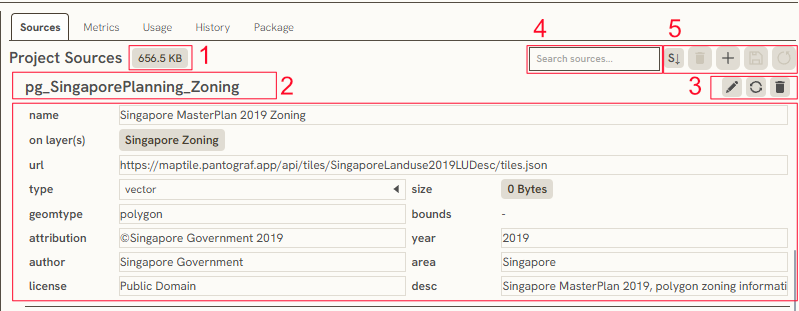
The Sources tab contains key metadata and management tools for your data layers:
-
Data source size displays the total file or layer size of the selected project source.
-
Project source name is to indicates the identifier that appears within your specific project layout. A single master datasource from 2.2.2 Datasources can be referenced across multiple distinct project sources.
-
This will allow you to edit, refresh, or delete the selected project source configuration. Note that you must provide proper data attribution here if you are utilizing public datasets.
-
Search bar provides a quick filter to find specific data sources within your project list instantly.
-
To sort sources, delete items, add a new source, save your progress, and refresh all project sources simultaneously.
C. Metrics
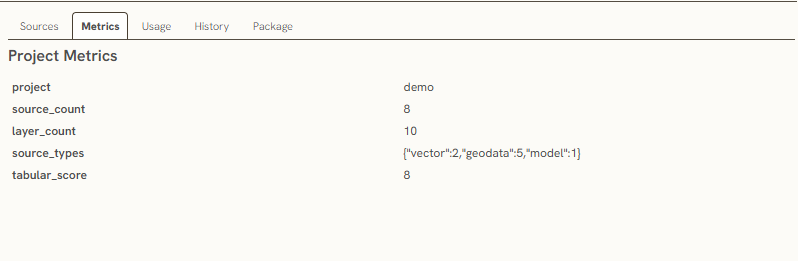
The Metrics tab provides a statistical summary of the data layers and elements used within your active project:
-
project displays the name or identifier of the current project workspace you are examining.
-
source_count indicates the total number of individual data sources connected to the project.
-
layer_count tracks the total number of map or data layers that used in your selected project.
-
source_types breaks down your data sources by their specific file or database types, detailing exactly how many vectors, geodata files, or 3D models are active in your selected project.
-
tabular_score displays your dataframe count within the selected project.
D. Usage
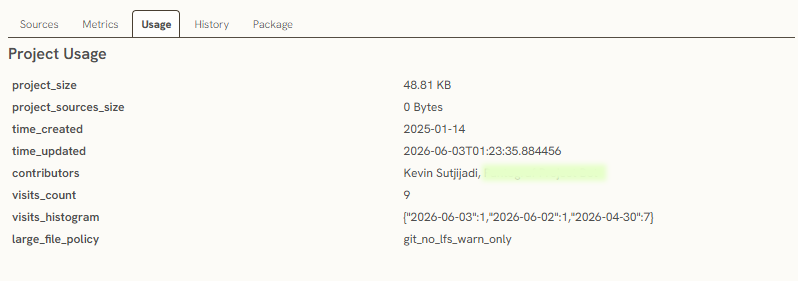
The Usage tab tracks system storage allocation, project timeline data, and traffic diagnostics for your workspac:
-
project_size displays the data footprint of the core project configuration file itself.
-
project_sources_size monitors the total storage size of all datasets and external files attached to the project.
-
time_created logs the initial timestamp and date when the project was first generated.
-
time_updated tracks the exact date and time of the most recent modification or save progress.
-
contributors lists the users or accounts who have authorization and editing access to the project.
-
visits_count displays the total cumulative number of times the project view has been opened or accessed.
-
visits_histogram breaks down traffic analytics over specific dates, showing exactly how many visits occurred on given days.
-
large_file_policy indicates the version control or repository rule set for managing oversized assets within the platform.
E. History
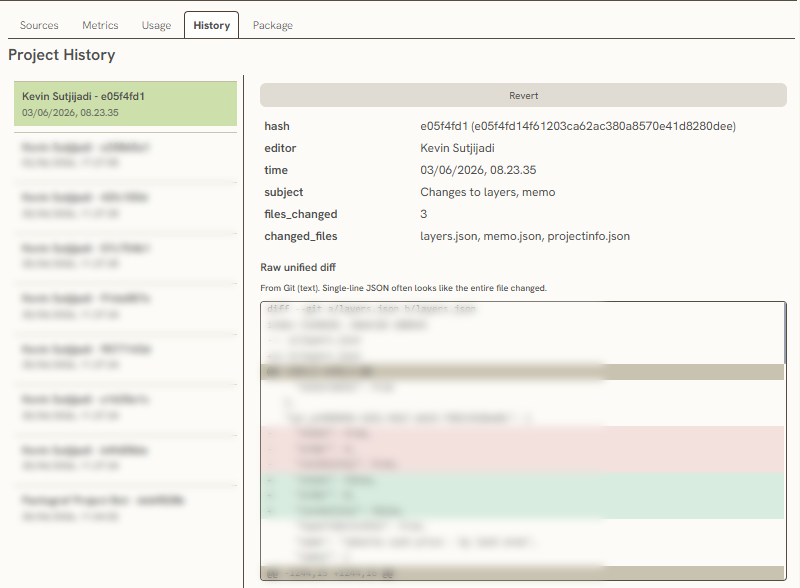
The History tab tracks your progress history and version log by displaying specific information about the editor, timestamp, changed subjects, files_changed, and changed_files, while also providing a Single-line JSON tab to inspect the raw structure of the entire file change. You can also revert the change by click the Revert button.
F. Package
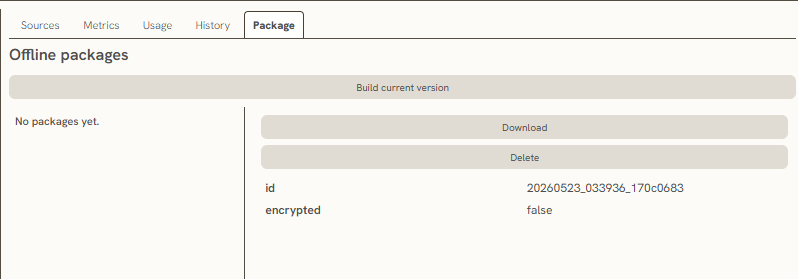
The Package tab allows you to build a specific version of your project, as well as download or delete it as an offline package.
Keywords
projects, create, new, project, sources, metrics, usage, history, package, section, display, name, url, access, 2fa, code