2.2.2 Datasources
Datasources is the server-side GIS library that feeds 2.1.4 Layers. Upload geopackages, run processing tools, chain workflows, and monitor jobs from this editor panel.
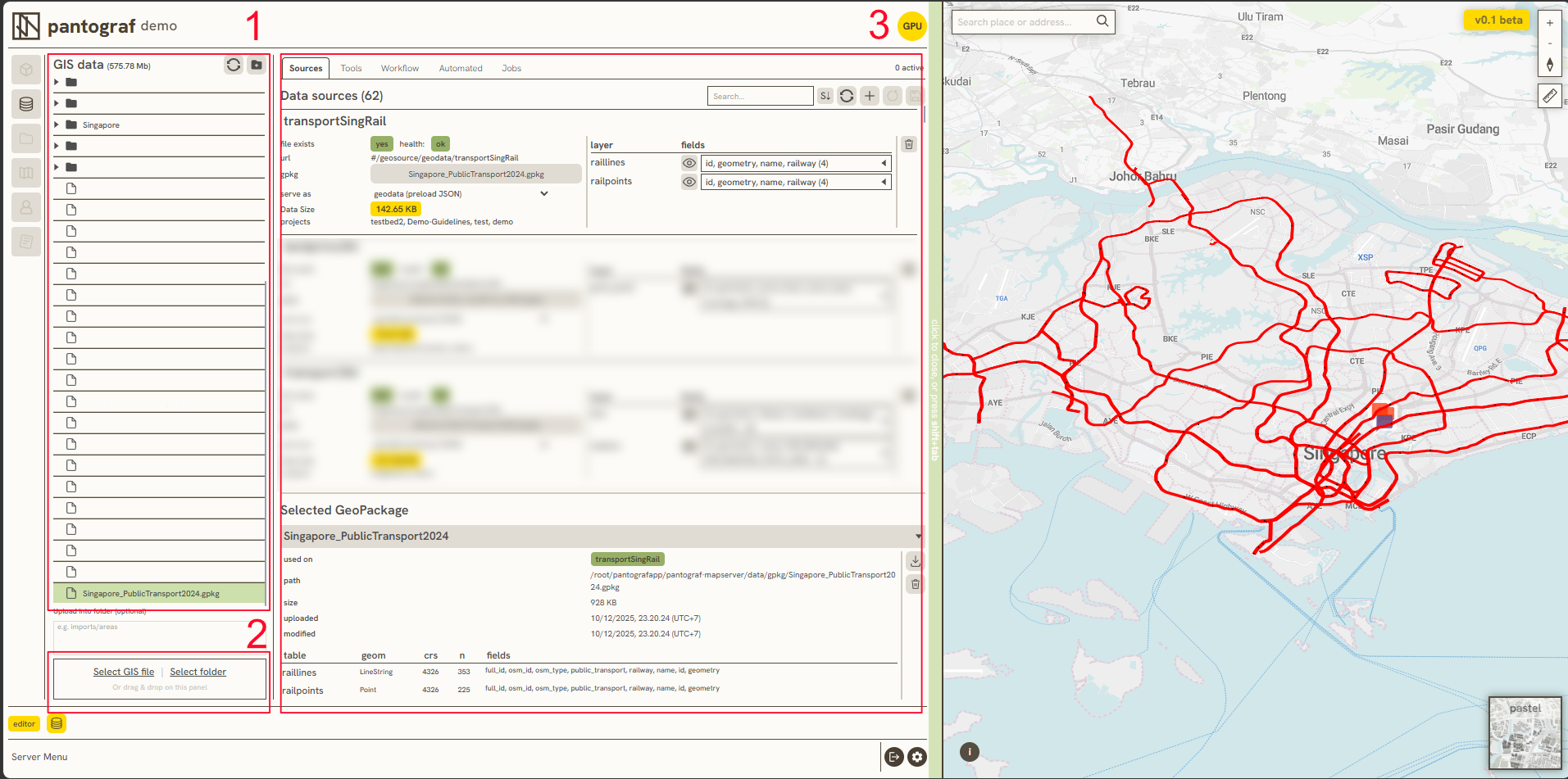
Data Sources serves as the central data management system that feeds into 2.1.4 Layers. The interface consists of three primary sections:
-
A structured list of GIS data used to manage files, there are abilities to organize and group datasets into folders.
-
Tools dedicated to uploading individual GIS files or importing entire directories directly from a local computer.
-
A dedicated management utility used to process, filter, and control GIS files residing on the server, which includes the following components:
-
A. Sources
-
B. Tools
-
C. Workflow
-
D. Automation
-
E. Jobs
-
A. Sources
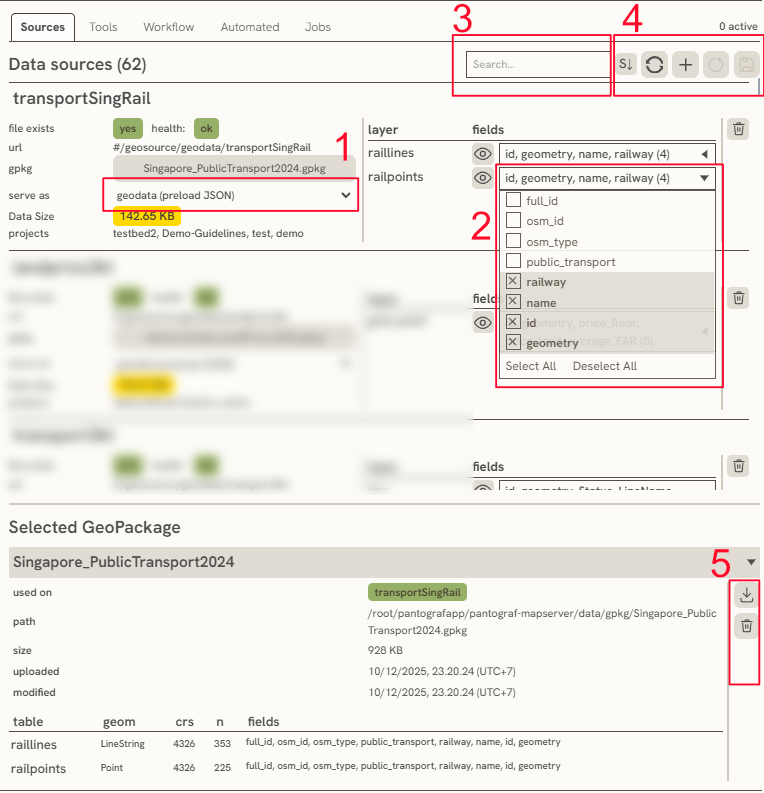
Sources has 2 main section. The first one is Data source, it contains a whole GIS data from the server. The second one is Selected Geopackage, this is to informing you several metadata and data attributes that attached in the selected layer. There is also vital function within the Sources: 1. Serve as is a dropdown function to setting specific layer will serve as, commonly either geodata or vector tiles (MVT). Vector tiles itself is to minimize data load, while using large data. 2. Fields is used for filtering the data attributes that will showed in 2.1.4 Layers 3. Search Bar is a search bar to easily find the layer 4. These button is used for sorting, refreshing (an updated layer), add a new layer that got from existing layer, reset the processed layer, and save the processed layer 5. These tools ised for either Deleted or Download a selected geopackage.
B. Tools
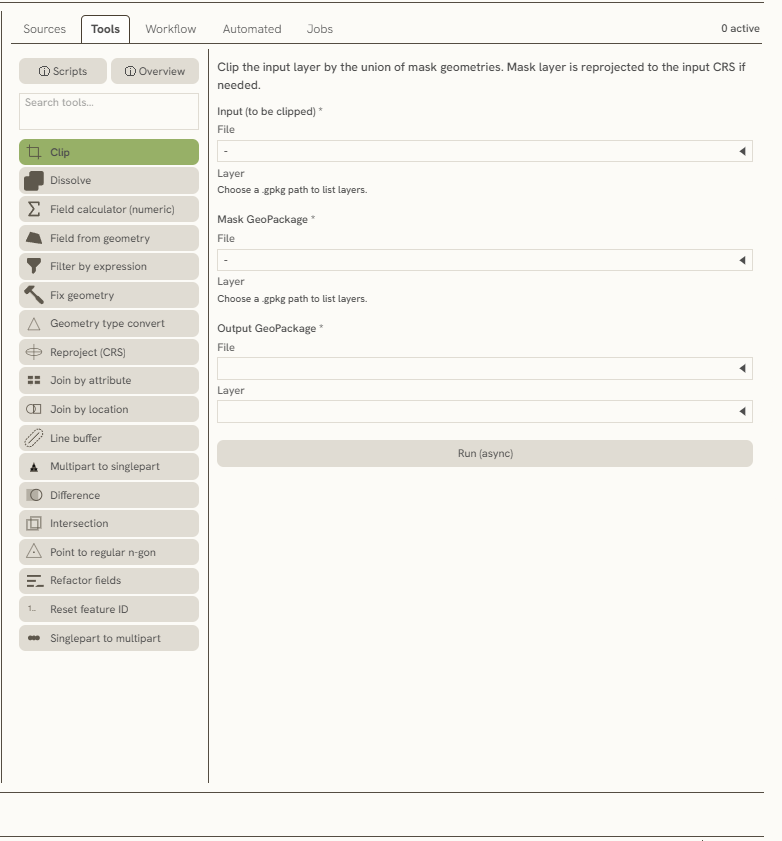
The Tools feature executes GIS processing operations between layers. This section provides access to various Python script helpers and a comprehensive toolbox overview:
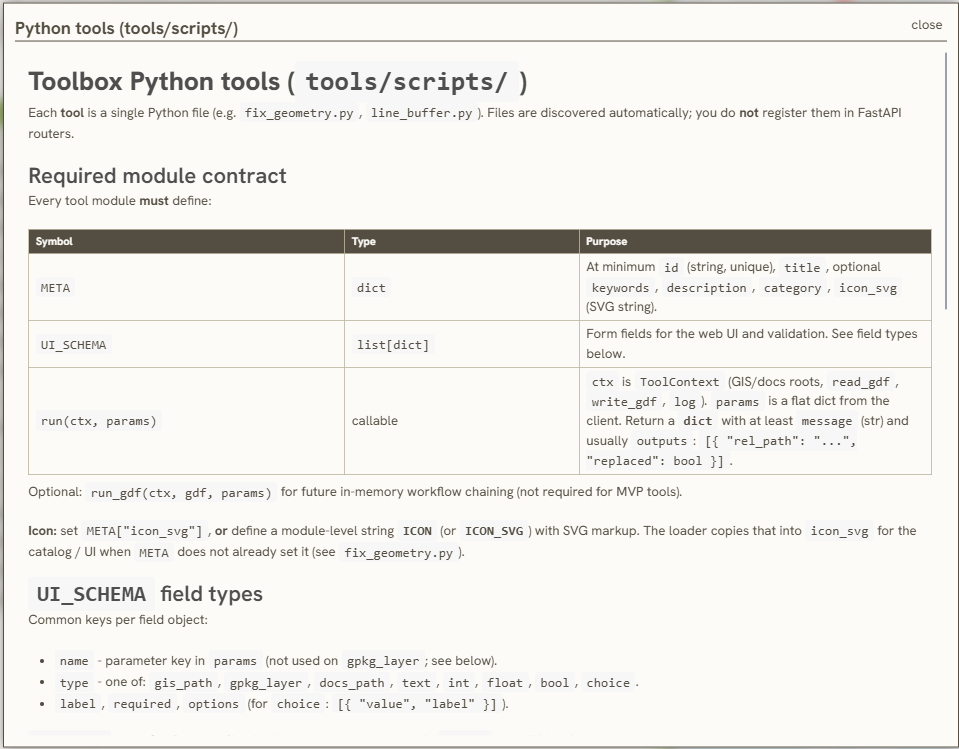
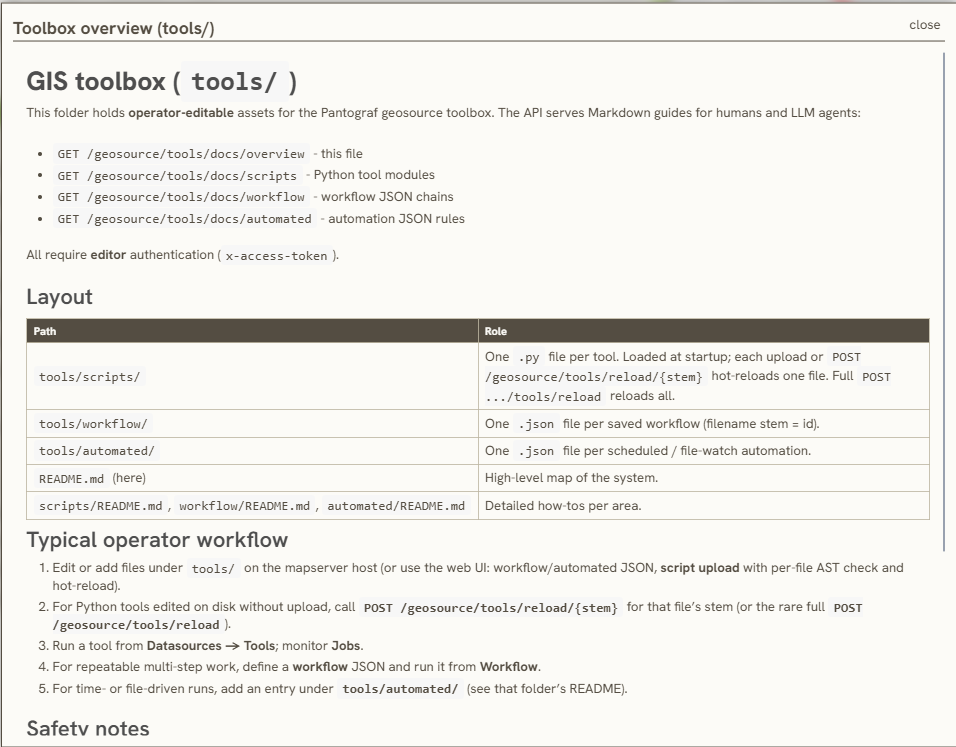
As a processing tool, this function requires specific data inputs before initiating the operation (detailed in Section 2).
For example, when using the Clip tool, a primary input file must be specified alongside a designated mask layer to serve as the spatial clipping boundary. Once the inputs are defined, either File or Layer (section 3) can be selected as the target destination for the processed output. After the configuration is complete, clicking Run (async) executes the final processing.
C. Workflow
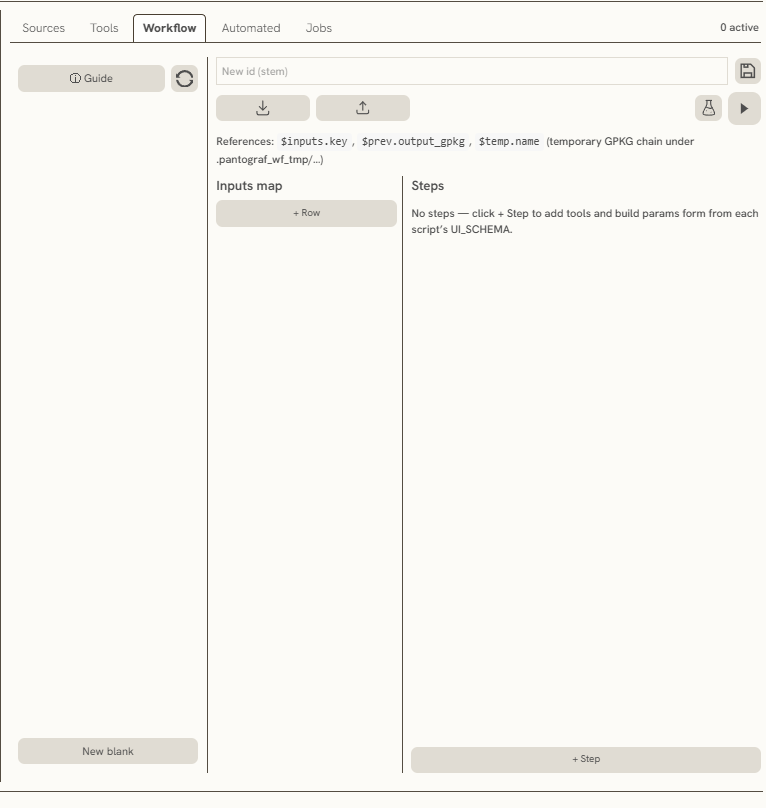
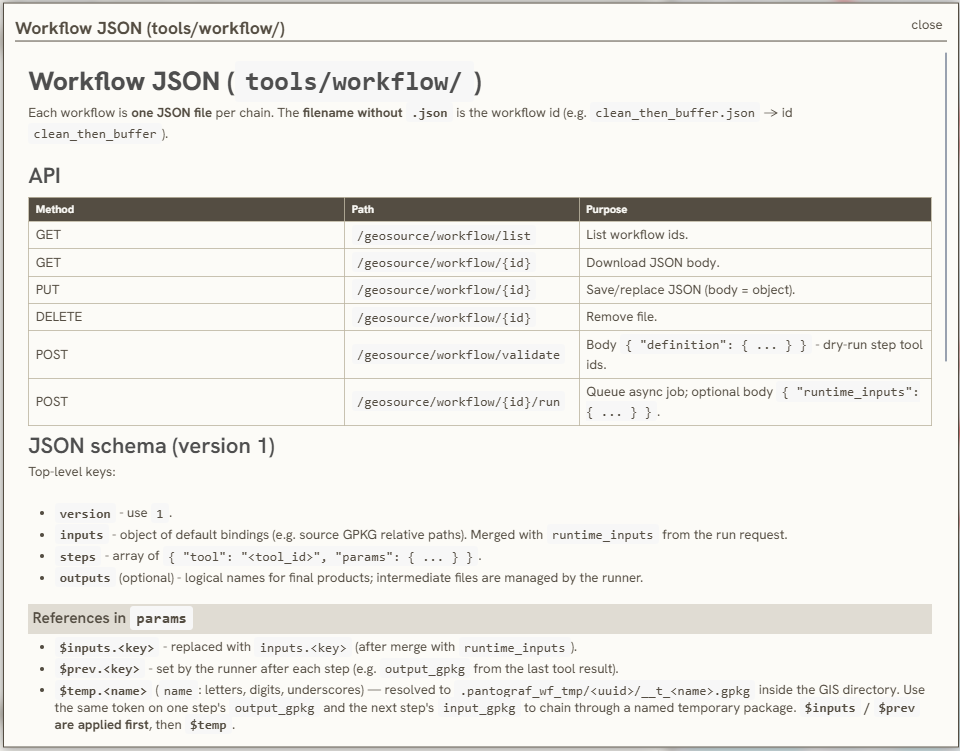
This feature enables chained data processing via JSON file uploads. It includes utilities to download workflow configurations from the web interface, or to upload a local JSON file to execute and manage the automated processing chain online.
D. Automated
The Automated section runs scheduled or batch processing jobs against server datasources. Use it when you need recurring imports, exports, or maintenance tasks without manual runs in Tools or Workflow.
((Additional screenshots and step-by-step guides for this section are still being added.))
E. Jobs
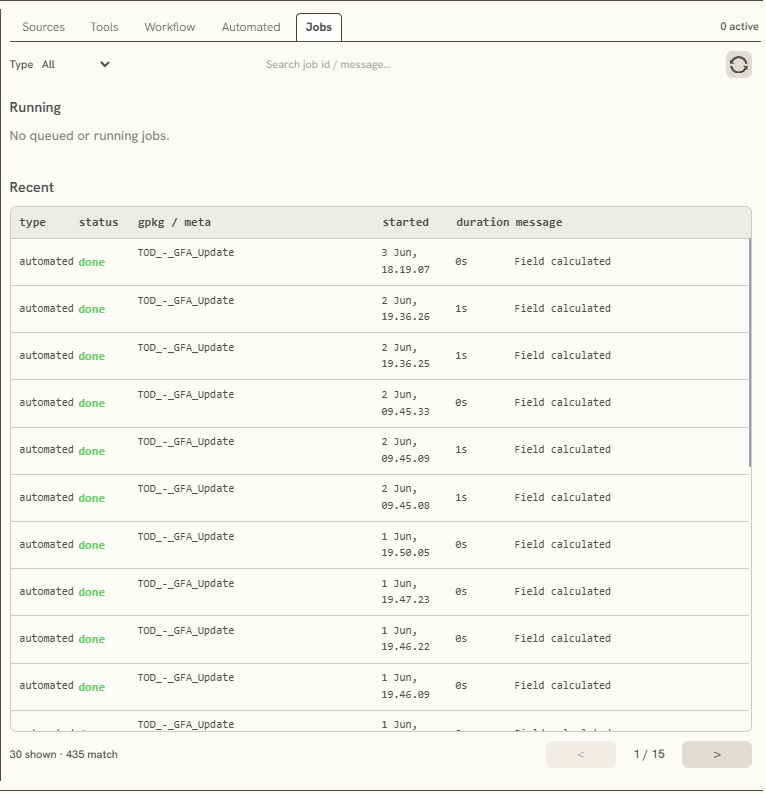
This feature monitors active and completed processes within the web interface, capturing start times and processing durations to facilitate performance reviews and data tracking. A refresh button is also available to update the status of ongoing operations in real time.
Keywords
datasources, sources, tools, workflow, automated, jobs, data, automation, serve, fields, search, bar, deleted, download, clip, file