2.1.8 Feature Info
Feature Info calculates statistics for selected map features — sums, averages, counts, and pivot-style summaries. Use it to analyze attributes inside a drawn area without leaving the map.
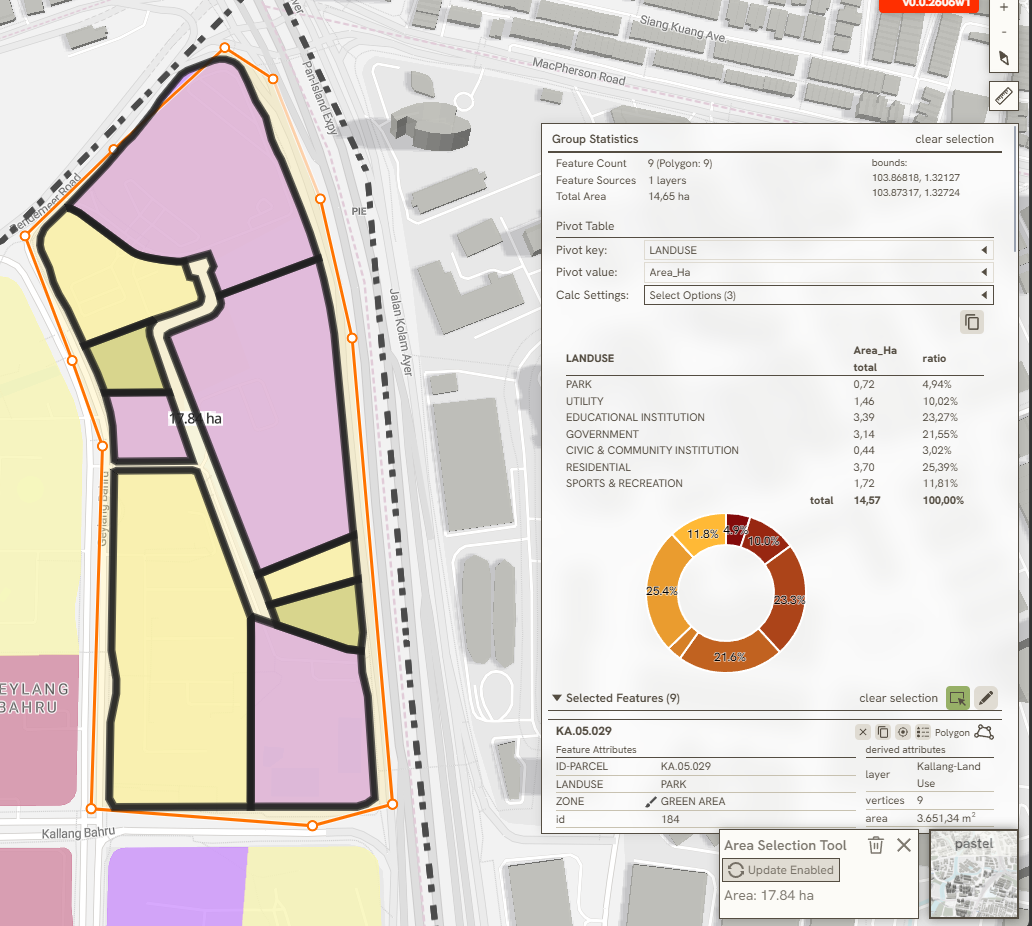
Feature info is used to quickly calculate and display a statistic for any vector layer currently selected on your project. This tool using the attributes that attached in a single shape to calculated in several math operations (average, sum, and count); The tool can also utilize a Pivot Key and Pivot Value to restructure data identically to an Excel pivot table, grouping attributes into rows and columns to summarize statistics for the selected shape.
Use these following steps to calculate & displaying the calculated data:
- Before selecting an area, use the Selection Filter to disable layers you do not need. Filtering out unnecessary layers minimizes heavy calculation processing times and simplifies your active selection area.
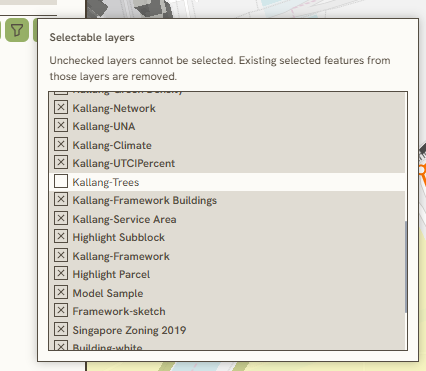
- In Feature Info tab, click to start selecting area to select several shape to be calculated
- Navigate to the Feature Info tab and click the Select Area

to begin choosing the specific shapes you want to include in the calculation. 4. Once the selection is made, the 1.1.7 Island Bar (Right Bar) will appear on your screen. It display detailed data attributes for each selected shape and it's total selected features.
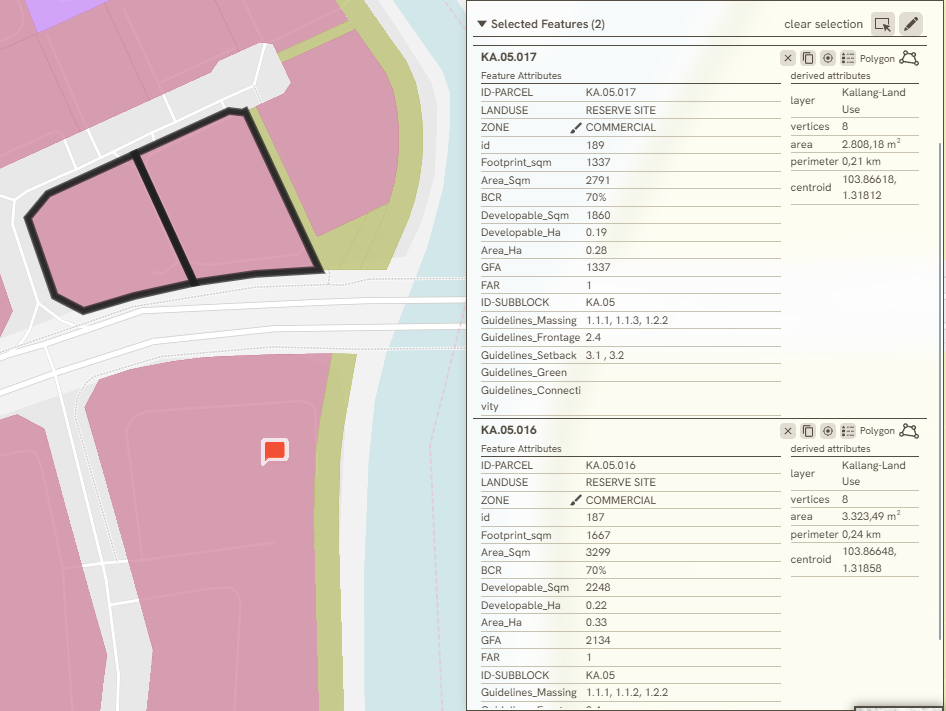
- Use these tools
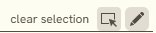
to clear selection, re-select area, and edit the attribute directly on the right-bar . 6. Use the Pivot Table tool to reference a pivot point for the spatial dataset. This function operates like an Excel pivot table, requiring a designated Pivot key (column) and Pivot value (row) to aggregate the spatial data.
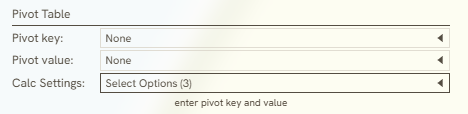
- After selecting the pivot key and value, the summary automatically displays at the bottom of the Pivot Table along with its calculated metrics. The columns of the generated table can also be customized or modified by using the Calc Settings menu.
Keywords
feature, info, calculate, and, display, statistic, pivot, key, value, selection, filter, select, area, calc, settings, 2 1 8