2.1.3 Themes
Themes save a snapshot of the map: which layers are visible, the camera view, basemap, shadow, and related Markdown content. Open a theme to return to a curated map state for review or presentation.
This tool arranges theme order, manages folder grouping, and creates new themes from the currently visible map configuration.
A. Create a New Theme
Follow these steps to create a new theme:
-
Select the target data layers within 2.1.4 Layers to include in the theme.
-
Adjust your Field of View and Shadow parameters in 2.1.7 Camera if necessary.
-
Open the Themes tab and click the "+" icon to generate the theme.
-
Use the 2.3.2 Markdown Editor to add descriptive text or embed specific data attributes for your theme.
B. Theme Advanced Settings
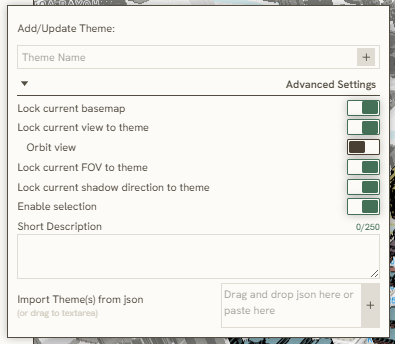
The following advanced settings are also available for your new theme:
-
Enter your Theme's name in the first bar
-
Advance Settings:
-
Lock current basemap: locks the current basemap in place. Use this option when updating a theme's basemap with a new layer configuration.
-
Lock current view to theme: locks your current camera viewport to the theme.
-
Orbit view: orbits the camera automatically upon opening the theme into specific referenced point.
-
Lock current FOV to theme: locks your current Field of View (FOV) settings configured in 2.1.7 Camera
-
Lock current shadow direction to theme: locks your current Sun & Shadow settings configured in 2.1.7 Camera
-
Enable selection: enables the cursor to select interactive layer features available within your theme
-
Short Description: allows you to provide a brief text summary or specific information about the theme (optional).
-
-
Import Theme from JSON: generates the theme using an existing JSON-formatted GIS layer configuration.
C. Copy & export
While editing a theme in the island bar:
- Copy content for Excel or Word — same rich clipboard export as 2.1.2 Series.
- Export theme set to clipboard — copies the theme-set JSON for backup or transfer to another project.
Export Map on the 2.1.9 Tools tab can render theme slides (with island-bar Markdown) into a PDF.
Keywords
themes, create, new, theme, advanced, settings, lock, current, basemap, view, orbit, fov, shadow, direction, enable, selection, clipboard, export, 2 1 3